QR Code for Hotel Room Wifi: How to Set It Up Right
QR Code for Hotel Room Wifi: How to Set It Up Right
Every front desk has heard it: "What's the wifi password?" It's one of the first questions a guest asks at check-in, and often the first thing they ask again once they're in the room and can't read the card taped to the desk.
A QR code fixes this instantly. Guests scan it with their phone camera and connect — no typing, no squinting at a laminated card, no calling reception.
Why a Printed Wifi Card Falls Short
A paper card sitting on the nightstand has three problems:
- It goes out of date. Change the router password and every printed card in the property is wrong until someone reprints and redistributes them.
- It's easy to miss. Guests arriving late, in a hurry, or unfamiliar with the room layout often don't see it at all.
- It only does one thing. A wifi card answers exactly one question. Guests still have to call reception for everything else — breakfast hours, checkout time, the wifi password on a second device, local recommendations.
How a Wifi QR Code Works
A wifi QR code encodes your network name and password in a standard format that phone cameras recognize automatically. When a guest scans it, their phone offers to join the network directly — no app required, no manual entry.
This works on modern iOS and Android out of the box: open the camera, point it at the code, tap the prompt to connect.
Where to Place It
Placement matters as much as the code itself:
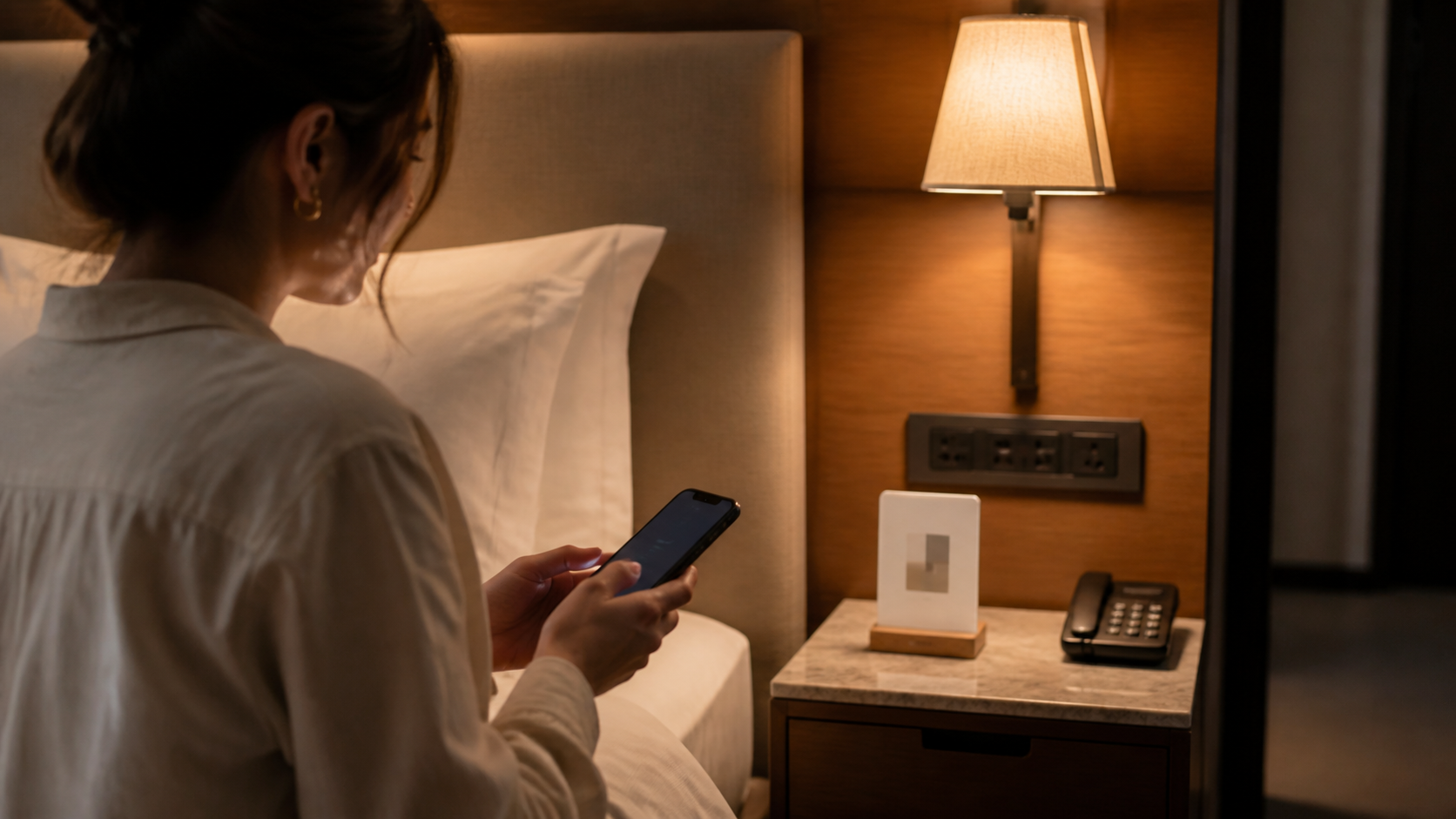
- Bedside table or headboard — where guests actually look first
- Desk or entryway — for guests who work as soon as they arrive
- Bathroom mirror — for properties with high group or extended-stay traffic
Avoid placing it only on a folder or binder guests may not open. Visibility beats formality.
The Problem With a Wifi-Only QR Code
Here's what most properties get wrong: they generate a wifi QR code, print it, and stop there. Now the room has one QR code for wifi, maybe another for a review request, another for room service — and guests have no idea which one does what.
A better approach is a single QR code that opens a full digital guidebook, with wifi as one section among several: check-in and check-out times, house rules, local recommendations, restaurant hours, and an FAQ. One scan, one place, everything the guest needs for the entire stay.
This is how OnboardGuest is built. Instead of a wifi-only code, you create one digital guest guidebook that includes your wifi network and password as a dedicated section — guests scan it once at check-in and keep coming back to it for everything else.
Setting It Up With OnboardGuest
- Create your property in OnboardGuest (the free plan covers one property with all sections, including wifi).
- Add your network name and password to the wifi section — it's editable instantly, so a password change takes seconds to update everywhere.
- Generate your property's QR code and place it where guests will see it: bedside table, desk, or entry.
- Guests scan once and get wifi access plus the rest of the guidebook — local recommendations, restaurant menus, and answers to the questions that usually go to the front desk.
If wifi confusion is only one of several recurring questions at your reception, it's worth looking at the pattern more broadly — see our guide on reducing guest questions at the front desk.
Mistakes to Avoid
- A QR code linking to a static image or PDF — it can't be updated once printed, so a password change means reprinting again.
- Too small to scan comfortably — test it with an actual phone camera from arm's length before printing at scale.
- No fallback text — always print the network name below the code for guests who prefer to type it manually.
- A separate QR code for every function — consolidate into one guidebook so guests only need to scan once.
Try It in Your Rooms
Setting up a scannable wifi section takes a few minutes with OnboardGuest's free plan — no credit card, no app for your guests to download. Try OnboardGuest for free and see your QR code generated in minutes.